| The
Alert Options Window
The
Alert Options window will appear when the program
is launched or when the taskbar icon is clicked.
A user name and password must be entered to access
the service. If you would like to skip this Log-on
screen the next time you start the PremiereTrade
FOREX Alerts, you should check the Automatically
logon to system box.
Once
the Log-on Screen has been populated, you should
click the OK button.
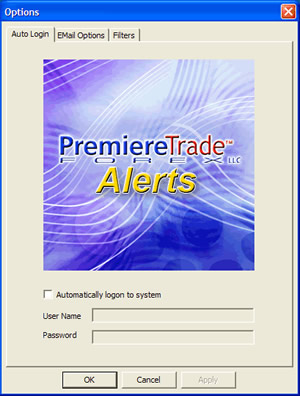
To
skip this process next time, check the “Automatically
logon” to system box
The
Email Options
The
Email Options Tab gives you the ability to manage
emails triggered by the release of an alert. You
can also control if a sound is made and if you want
the alerts to always be on top. Check or uncheck
these boxes to make the desired changes.
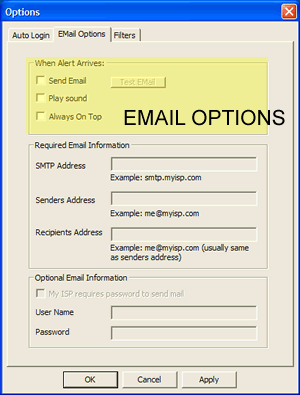
You
can also control if a sound is made when the alerts
arrive
Optional
Email Information
The
Optional Email Information is set up to have an
email sent to you when an alert is sent out. Fill
in the Required Email Information and check the
send email box
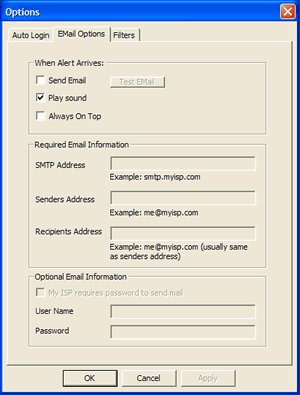
Send
an email when an alert is issued by filling in the
required information
Required
Email Information in Detail
SMTP
- Short for Simple Mail Transfer Protocol, is a
protocol for sending e-mail messages between servers.
Most e-mail systems that send mail over the Internet
use SMTP to send messages from one server to another;
the messages can then be retrieved with an e-mail
client using either POP or IMAP. In addition, SMTP
is generally used to send messages from a mail client
to a mail server. This is why you need to specify
the SMTP server when you configure your e-mail application.
Finding
SMTP address in Outlook XP, Outlook 2000-Outlook
Express 5
To
find your SMTP address, you will need to look in
your email account information. We have provided
some common screens from MS Outlook.
In Outlook, email account information is typically
found by selecting:
•
Tools
•
Email Accounts
• View or Change existing e-mail accounts
• Select your current account and find the
SMTP address in the servers tab
• You Do Not have to change anything in
these settings
Step
1 – Outlook Email Accounts
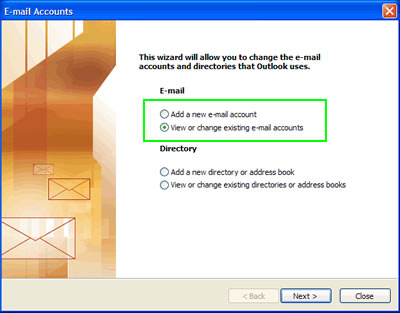
View
or change existing e-mail accounts to find SMTP
address
Step
2 – Click on the Properties Button
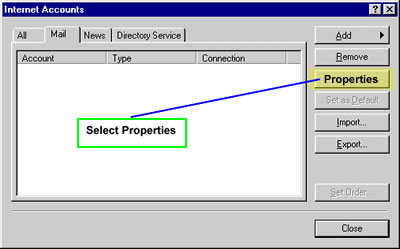
Selecting
properties is the next step
Step
3 – Click on the Servers Tab – Find
the SMTP address
In the Servers tab find Outgoing Mail (SMTP) This
is the address you will need for the Alerts to function
correctly.
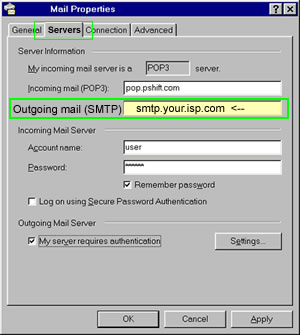
Write
the SMTP information down, you will need it in the
next step
Step
4 –Adding SMTP and your email address
A)
After writing down the SMTP address, re-open
the PremiereTrade FOREX Alert Options window (Email
Options Section)
B)
Now you can enter the SMTP address into the SMTP
box (shown below)
C)
Then enter your email address. Note: it must be
from the same account as your SMTP
D) Now enter the address where
you want the Alerts to be forwarded. This can
be any email that you choose.
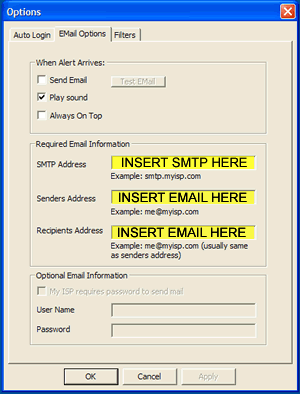
Enter
your SMTP information into the box, then your email
Step
5 - ISP Password (If Required)
If you are required by your ISP (Internet service
provider) to include your user name and password,
this information can be entered into the box shown
below.
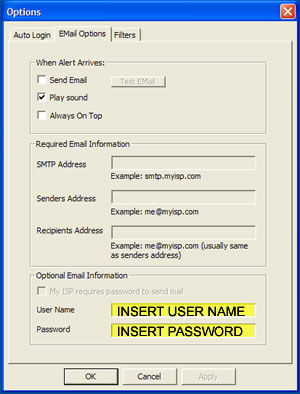
If
required by your ISP, enter your User Name and password
Filters
Tab
In this tab, you will be able to set the types of
Alerts you would like to receive. You also have
the power to deselect certain Alerts if you choose.
Once your selections are made, press the apply button
and the click “Ok”
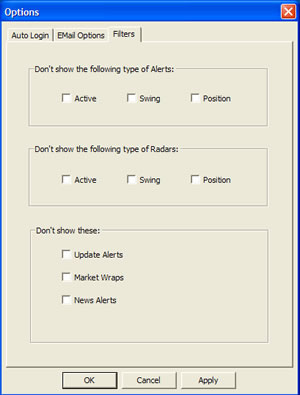
Using the checkboxes, select or deselect the alerts
that you would like to receive
|



